Change the Project Status
Move the project through the project lifecycle.
In order for the changes in your project to take effect, you'll have to promote a revision of the project through the different states of the project lifecycle workflow to make a production solution. For more information, see Use Projects for Version Control.
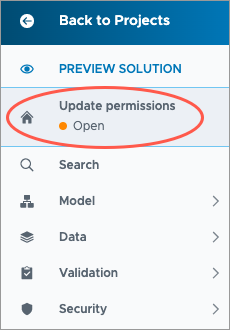
You can change the status of a project in the project home. When working in a project, click the Home button  on the navigation bar to return to the project home.
Prerequisites: If you're not the owner of the project, you must have the Edit or Share permission to perform the following tasks.
Tip: Want to customize the project lifecycle workflow to fit your team's review and publishing process? Contact Visier Technical Support to discuss options and request a custom profile.
Submit a project for approval
Submit a revision of the project for review and have it validated for release. Once the project has been submitted, it must be approved and released to production by another collaborator.
Access requirements
Custom profile with these capabilities: Approval
Reach out to your administrator for access.
-
In a project, on the navigation bar, click the Home button
.
- Click Submit For Approval in the upper-right corner of the project home.
Result: The project status changes to Approval and the project cannot be edited.
Validate a project
Approve or reject a project that has been submitted for approval.
-
In a project, on the navigation bar, click the Home button
.
-
Click the Changes tab in the project home and validate the changes contained in the project.
- Optional: If the project is based on an outdated production version, it must be updated so it's based on the lastest version.
No conflicts: Click the Update to Latest button. The project is rebased to the latest version and changes are automatically committed.
Conflicts present: You must reject the project to notify the author that conflicts need to be resolved.
- Do one of the following:
- Approve the project and release these changes to production. For more information, see Publish Project Changes.
- Reject the project and stop these changes from being released to production:
- Click the More button
 > Reject Project in the upper-right corner of the project home.
 - In the Reject Project dialog, type a rejection reason and describe the revisions that need to be made, and then click Reject now.
Result: The project status changes to Rejected and the project must be reopened before it can be edited.
- Click the More button
Note:
- If you're collaborating with Visier on a project, let us know that you've validated and approved the project, and we will release the project into production on your behalf.
-
By default, Visier Technical Support users will not be able to release a project to production. As an administrator, you're responsible for validating and publishing any changes to the solution that we make on your behalf to production. If you want Visier Support users to publish approved projects on your behalf, you can turn on the Delegated Publishing option in the global workspace by clicking Settings > Publishing on the global navigation bar.
- If you've rejected a project, we will reopen the project, make your suggested changes, and send it back to you for validation.
Archive a project
Archive a project that you own to retain it for future reference or before deleting it. Once archived, projects can no longer be edited or accessed by collaborators. Projects in Approval status cannot be archived.
To archive a project:
-
In a project, on the navigation bar, click the Home button
.
- Click the More button > Archive Project in the upper-right corner of the project home.
To archive projects in bulk:
-
On the global navigation bar, click Projects.
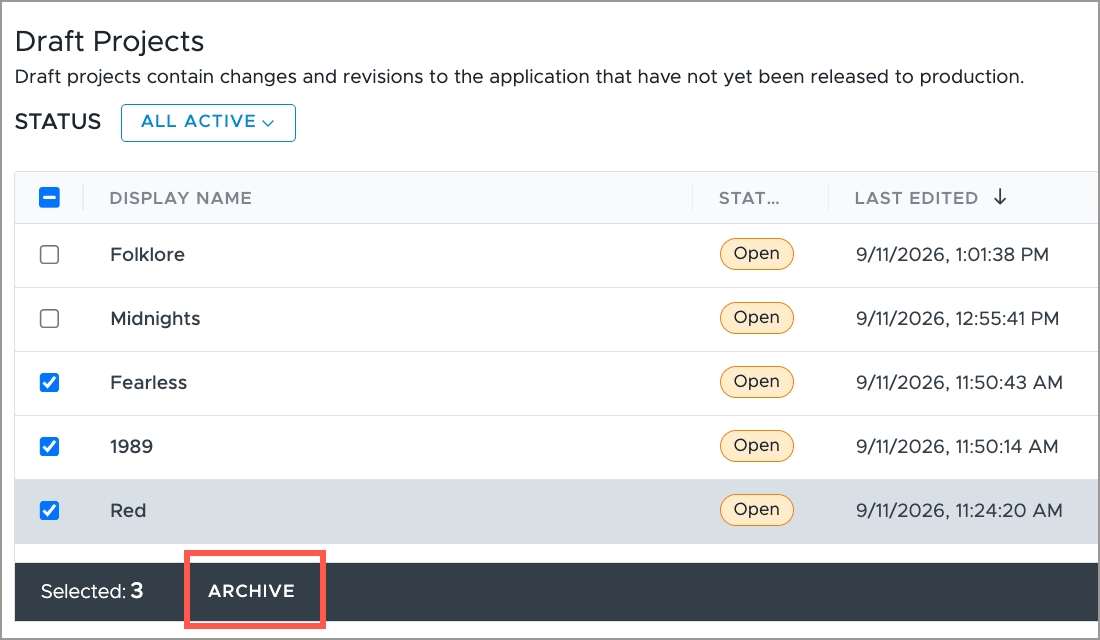
- Under Draft Projects, select the projects to archive.
-
Click Archive on the Projects bulk action bar.
Reopen a project
Reopen a rejected or archived project that you own to continue working on it and make it available to collaborators.
-
In a project, on the navigation bar, click the Home button
.
- Click the More button > Reopen Project in the upper-right corner of the project home.
Result: The project can be edited and accessed by collaborators.
Delete a project
Permanently remove a project that is no longer needed. You will have the option to export the project before it is permanently deleted.
Prerequisites: To perform this task, you must archive the projects you want to delete.
To delete a project:
-
In a project, on the navigation bar, click the Home button
.
- Click the More button > Delete Project in the upper-right corner of the project home.
To delete projects in bulk:
Note: This feature is also available through Visier's public APIs. For more information, see Projects API.
-
On the global navigation bar, click Projects.
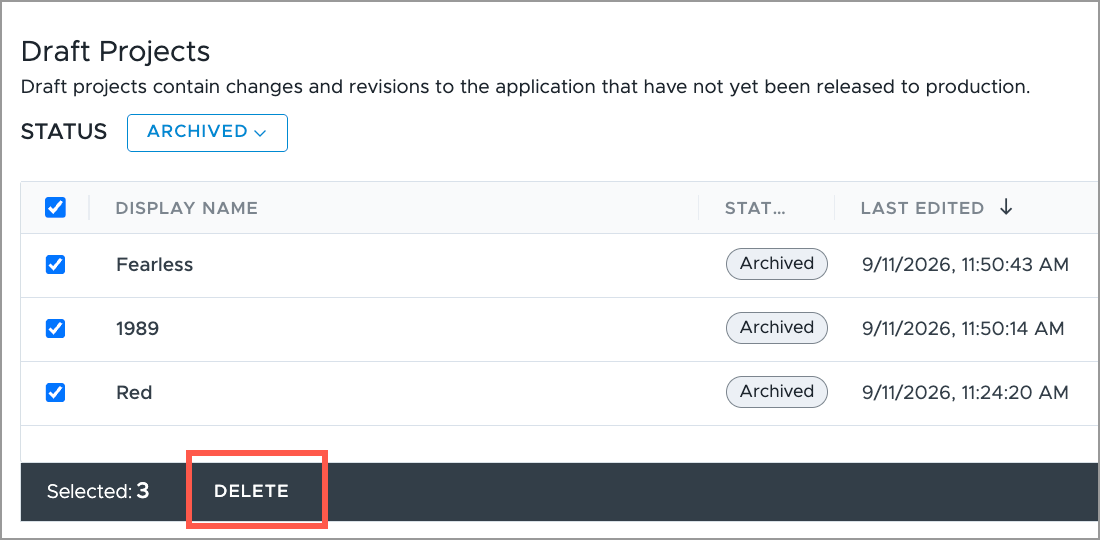
- Under Draft Projects, set the Status filter to Archived to view all archived projects.
- Select the projects to delete.
-
Click Delete on the Projects bulk action bar.